Safe auto mode when a dev container doesn't fit
Many companies don't let coding agents run unattended on developers' computers. Claude Code, for one, has settings that take auto mode out of the menu and stop anyone skipping permission checks, and an organisation can enforce both for everyone. The usual answer to "but I want it to get on with the work" is a dev container: run the agent inside Docker, where a wrong command can only damage the container. Claude Code's own documentation describes that setup, with a firewall and permission checks switched off inside.
When a container fits, that is good advice. This post is about the work where it doesn't, and what Saeta's safe auto mode offers there instead. Saeta's rules are described as they stood on 12 November 2026, when we ran every command below through them. Saeta has no public release yet.
Where the container gets in the way
A dev container works best when the whole job is files, a compiler and a test runner. Some work needs the computer itself.
- Android. The emulator is fast because it uses the processor's virtualisation directly. Google's documentation is plain about it: you can't run a VM-accelerated emulator inside another VM, "such as a VM hosted by VirtualBox, VMWare, or Docker". A phone on a USB cable is no easier: Docker Desktop does not support direct USB device passthrough, only a workaround over USB/IP.
- iOS. Xcode and its simulators install only on macOS. The dev containers that editors such as VS Code open are Linux containers.
- Embedded and edge devices. Flashing a board means a serial port, a USB debug probe or an SD card, the same hardware a container is built to keep out.
- GPUs. A container can use an NVIDIA card only with the driver on the host and the NVIDIA Container Toolkit installed and configured into Docker.
None of this is impossible. But every workaround hands the container a piece of the host, a device, the GPU, the USB bus, and keeping the host out was the reason for the container. So many teams in these fields run the agent on their own computer with permission prompts on, and answer them all day.
What safe auto mode does on the host
Saeta sits between an agent such as Claude Code or Codex and your computer. When the agent wants to run a command or touch a file, Saeta checks its rules and lets the call through, blocks it, or asks you.
Safe auto mode is for when you want the agent to get on with it. You turn it on for one project. The agent can then edit files, build, run the tests and run the project's own scripts without asking. It still asks about a short list of risky things, and a few things are blocked in every mode.
Here is what that looks like for the kind of work above. We ran each of these commands through Saeta's rules, on Linux, in a project with safe auto mode on.
Runs without asking:
./gradlew assembleDebugadb install -r app/build/outputs/apk/debug/app-debug.apkadb logcat -demulator -avd Pixel_8 -no-snapshotxcodebuild -scheme App -destination 'platform=iOS Simulator,name=iPhone 16' testxcrun simctl boot 'iPhone 16'flutter run -d emulator-5554idf.py buildnvidia-smipython train.py --epochs 1
Stops and asks, with the reason Saeta shows:
| Command | Why Saeta asks |
|---|---|
rm -rf build/ | deletes files |
git push origin main | pushes to a remote |
idf.py -p /dev/ttyUSB0 flash monitor | names a file or folder outside the project |
sudo dfu-util -D build/fw.bin | runs as another user (root) |
ssh pi@raspberrypi.local | connects to another machine |
docker run --device /dev/kvm img | runs a container with access to this computer |
python -c '...' | runs code written on the command line |
Blocked in every mode: dd if=build/sdcard.img of=/dev/sdb ("dd onto a disk device") and mkfs.vfat /dev/sdb1 ("formatting a filesystem"). Writing an image to the wrong disk is a classic embedded mistake, and Saeta does not leave it to a question.
The question arrives in the desktop inbox, and on your phone if you paired one (our post Answer your coding agent's questions from your phone covers that):
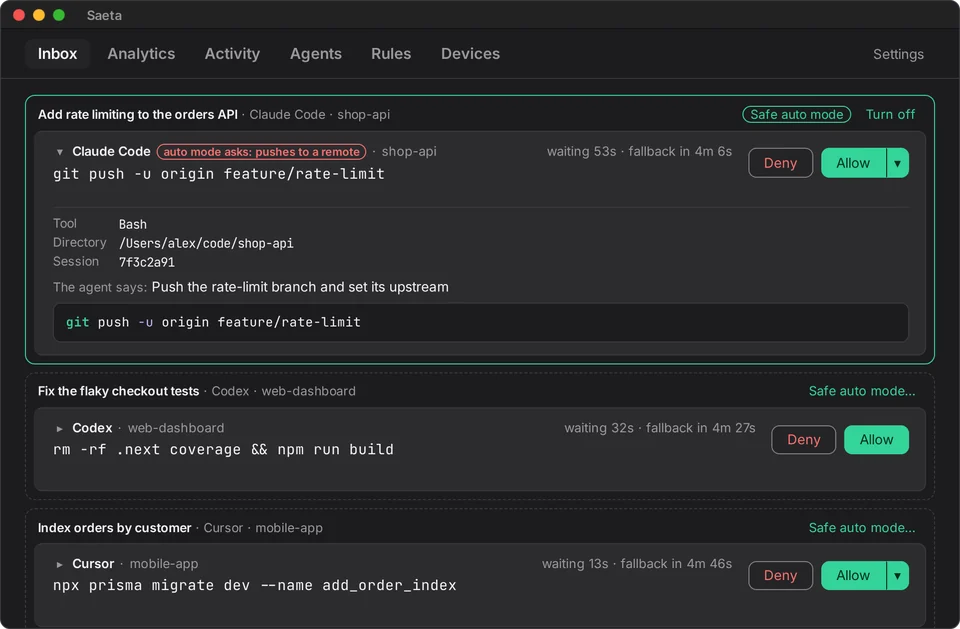
(The screenshots use invented demo data.) If nobody answers in time, the answer is no. Everything safe auto mode asks about is high-risk in Saeta's terms, so a timeout denies it whatever your fallback setting says.
Asking only when it matters
A guardrail that asks too often gets switched off. Saeta has three ways to keep the questions down without widening what an agent may do in general.
Remember an answer. When Saeta asks about flashing with esptool.py, you can allow it and remember the choice for that program in this repository. Be clear about what that means: from then on every esptool.py command in the repository runs, erase_flash included. The serial port itself can't be allowed as a folder: Saeta won't count /dev as part of a project, so a command that names a device keeps asking unless you remembered that program.
Allow folders outside the project. In safe auto mode, a command that reads or writes outside the project asks. The system's temporary folders count as inside from the start. You can add others: agents' own working folders, build and package caches (to read only), or a folder of your own, for one session, one project or everywhere. Deleting, pushing and the other questions still apply inside an allowed folder.
Watch only some folders. With folders in Saeta's settings, it only asks about agents working in the folders you list. Elsewhere it steps aside, except for its blocks and high-risk questions, which hold everywhere.
A record of what ran
An agent that works without asking should leave a trail. Saeta keeps an activity log on your computer: each call it saw from a hook-connected agent, and whether a rule or a person decided it. By default it keeps 90 days and up to 100,000 rows, and you can choose whether calls Saeta's own starting rules allowed are recorded too. Nothing in it leaves your computer; the account website only shows counts.
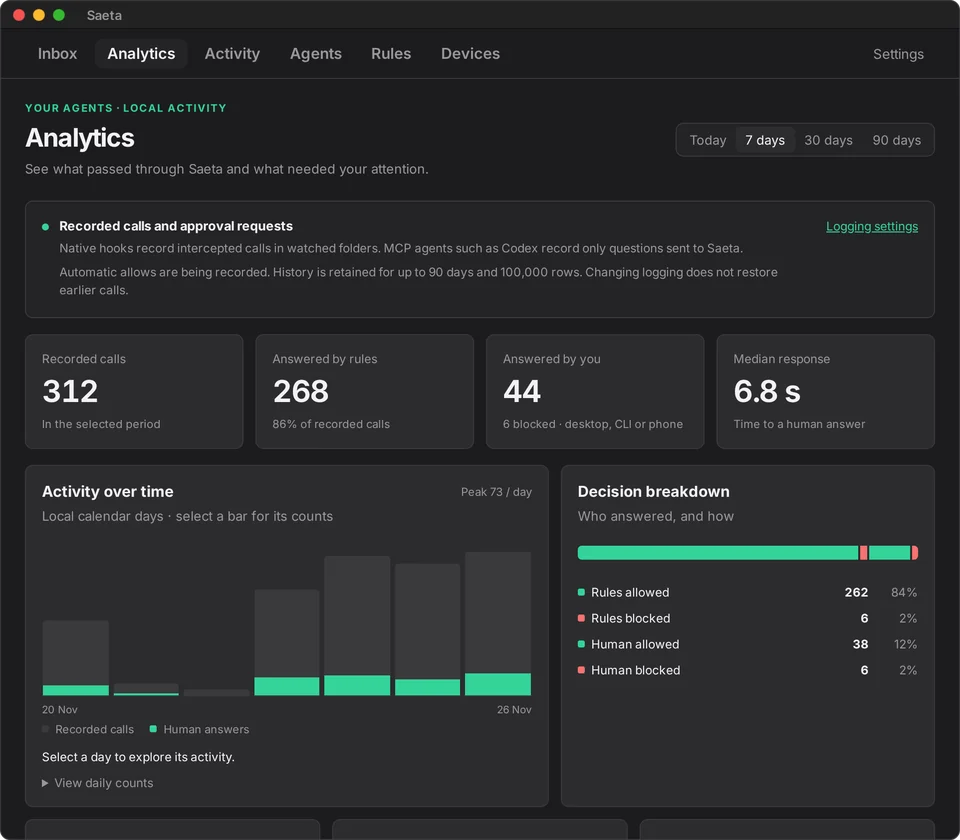
For a team that has to explain why an agent was allowed to work on a developer's computer, a log of what it ran and who said yes is a better answer than "it was in a container, probably".
What this is not
Saeta is a guardrail against an agent's mistakes, not a sandbox, and a dev container gives you something it can't.
- Project scripts and tools run unasked. Saeta reads the command line, not what happens next.
./gradlewruns whatever the build files say, and a fastlane lane that uploads a build to the app stores runs like any other project command.openocd,pio run -t uploadanddfu-utilwithoutsudoflash a board without naming a device on the command line, so they run too. - Commands on the device are not read.
adb shell rm -rf /sdcard/Downloadruns: Saeta seesadb, not what the phone is asked to do. - It does not contain a hostile agent. An agent set on getting round Saeta can write a script and run it. If you are running code you don't trust, such as an unknown repository or dependencies nobody has checked, a container or a virtual machine is still the right tool.
- It is not a way round your company's policy. If your company has switched auto mode off, Saeta is something to show the people who made that call, not a reason to ignore it. Saeta's organisation policies, in early access, let an administrator set rules above each developer's own.
And keep your work in version control. It undoes more mistakes than any rule.
Try it
If your work lives on the host, with emulators, boards or GPUs, and you would like an agent to get on with it while still stopping before it deletes, pushes, flashes or runs as root, join the waitlist. We will email you when early access opens. The safe auto mode documentation lists everything it asks about, and our post When an agent in auto mode goes too far looks at public cases where agents in auto mode went too far.
Sources
- Development containers, Claude Code documentation.
- Settings reference:
disableAutoModeandpermissions.disableBypassPermissionsMode, Claude Code documentation. - Configure hardware acceleration for the Android Emulator, Android Developers.
- General FAQs for Desktop, Docker documentation, on USB passthrough.
- SDK and system requirements, Xcode, Apple Developer.
- Developing inside a container, VS Code documentation.
- Installing the NVIDIA Container Toolkit, NVIDIA.
- Safe auto mode and folders outside a project, Saeta's documentation.