Answer your coding agent's questions from your phone
A long agent task rarely stalls because the work is hard. It stalls because the agent reached a step it should not take on its own, asked, and nobody was there to answer. You come back after lunch to a terminal that has spent most of the hour waiting for one "yes".
The usual workarounds are not great. You can stay at your desk. You can reach the terminal over SSH from your phone and read a prompt in a tiny font. Or you can turn the agent's permission checks off and hope for the best, which is the one option that really does leave it unsupervised.
Saeta takes a different route: the question comes to you. This post describes how phone approvals work in Saeta's Android app as of 12 November 2026, what you can and cannot answer from the phone, and what happens when you do not answer at all. Saeta has no public release yet, and we are still testing the phone app on real devices before early access opens.
One example, start to finish
Alex is adding a rate limiter to a project called shop-api. Claude Code does the work, with Saeta's safe auto mode turned on for that project. Safe auto mode lets the agent edit files and run the tests without asking each time, but it still asks about a short list of risky actions. Pushing to a remote is one of them.
Alex leaves for lunch. Some time later the tests pass and the agent wants to run:
git push -u origin feature/rate-limitSaeta's daemon on the laptop holds that call open, and the request reaches Alex's phone as a notification. Saeta asks Android to keep the details off the lock screen, so a locked phone shows only "Saeta needs you". Once the phone is unlocked, the notification shows the agent, the project, the computer, why Saeta is asking and the exact command:
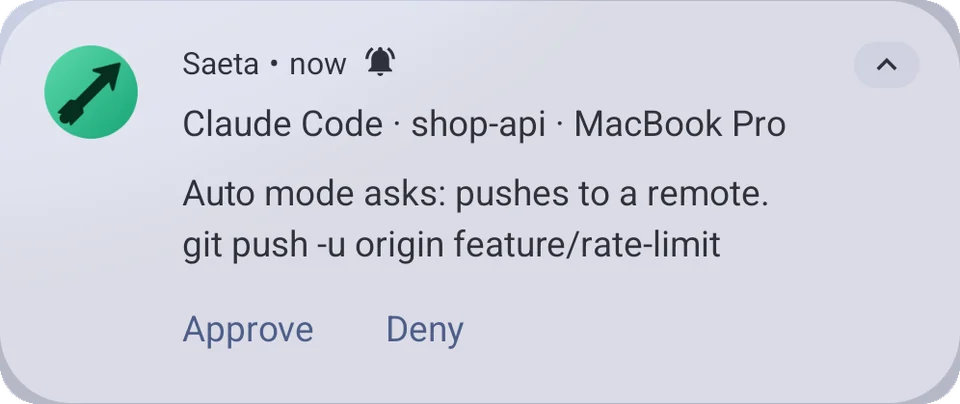
Alex taps Approve. The answer goes back to the laptop, the push runs, and the agent carries on with the rest of the task. Nothing about the agent's permissions was switched off; one action waited a few minutes for a person.
If the request had not fitted in a notification, tapping it would have opened the app, which shows the whole request and how long is left to answer it:
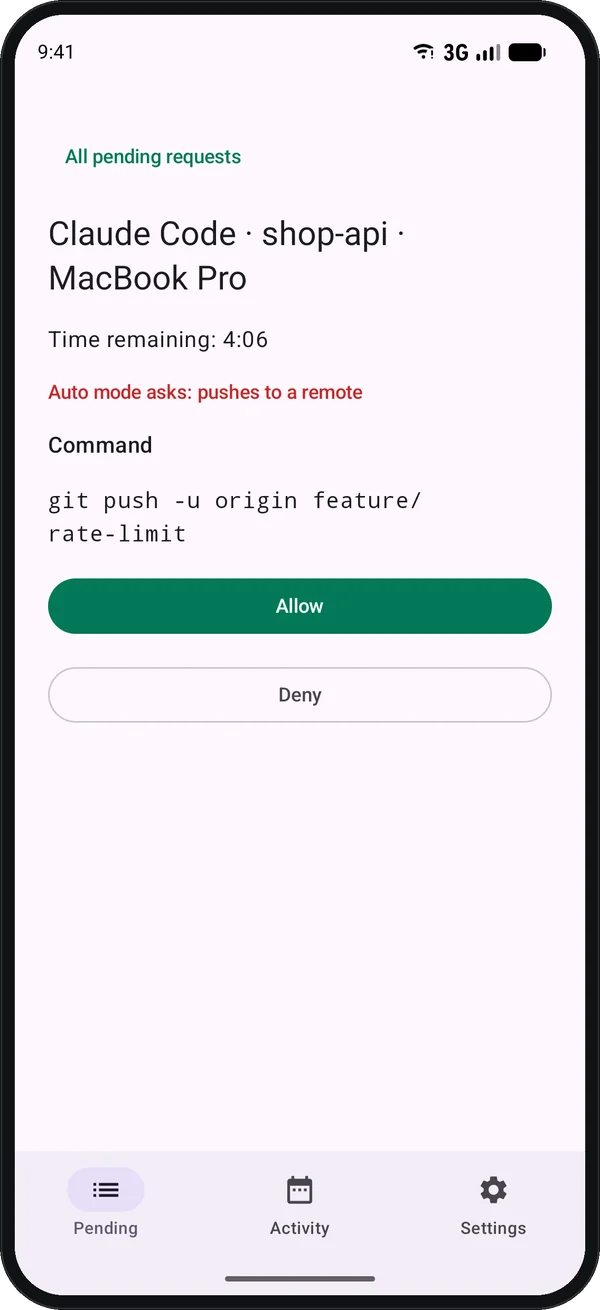
(The screenshots use invented demo data: Alex, shop-api and the laptop are made up.)
What you can answer from the phone
Approve or deny from the notification. This works for a short shell command that the notification can show in full. Approve asks you to unlock the phone first; Deny is a single tap. Approving from the notification needs Android 12 or later and a screen lock; without them, the notification offers Deny and a button that opens the app, where you can approve.
Everything else opens the app. A file edit, a long command, a request that reaches outside the folders you chose, or a request where Saeta has masked something that looks like a password or a token is answered in the app, where you can read all of it. Saeta keeps credentials out of the notification text because Android keeps that text in its notification history.
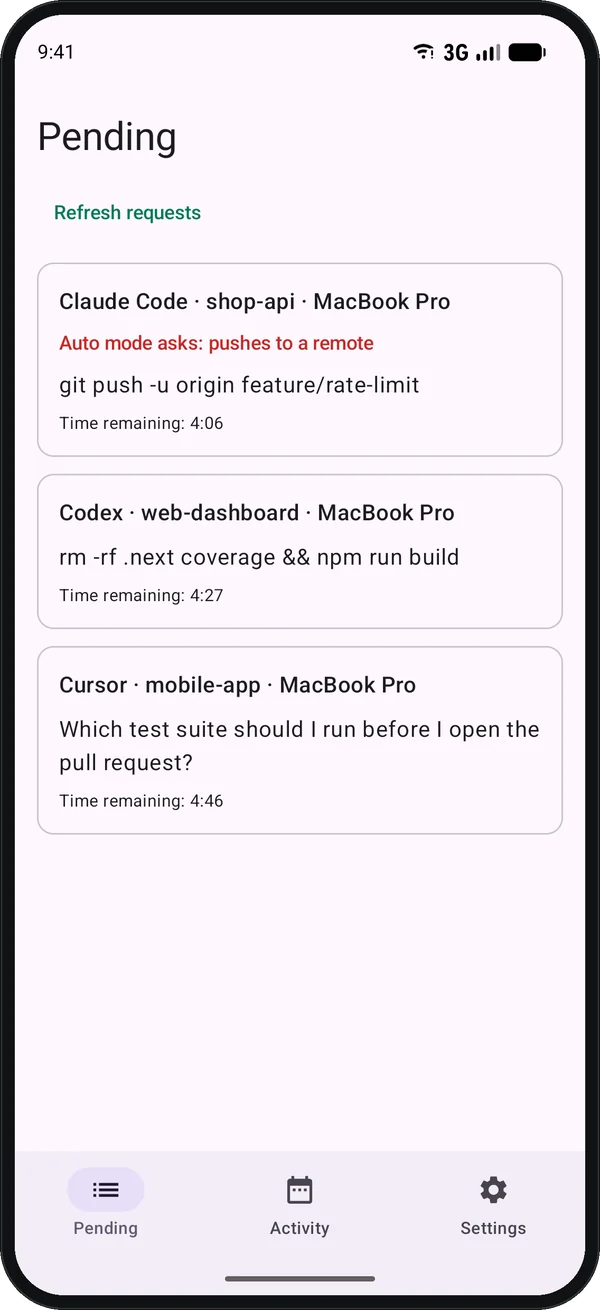
Several requests at once. If two agents need you at the same time, the Pending screen lists them all, each with its own time left, rather than one blocking dialog.
Questions, not only permissions. When an agent asks you something through Saeta, the phone shows the question. You pick one of the options the agent offered, or type an answer, and the text goes back to the agent.
Corrections. On the desktop, a denial can carry a short reason, such as "use pnpm instead of npm", and the agent receives it along with the refusal. The phone app cannot add a reason to a denial yet: from the phone you approve, deny, or answer a question.
When nobody answers
A phone in your pocket is not a promise that you will look at it. Every request has a deadline, and when it passes, Saeta answers for you.
- How long it waits. Five minutes by default. You can make it shorter, but not longer: Saeta sets Claude Code's hook to give up after 330 seconds, and the answer has to arrive before the agent stops listening.
- What it answers. A denial by default, with the reason "timed out waiting for a human", so the agent gets a clear no instead of hanging. You can change the fallback to allow, but that is a deliberate choice, and on a computer an organisation manages it does not override the organisation's rules.
- On the phone. The notification disappears when the deadline passes. If you open the request afterwards, the app tells you it expired and that you can answer on your computer if it still needs you.
- Without a signal. If the laptop loses its connection, requests are still answered in the desktop inbox, and the desktop shows that remote approvals are offline while it keeps trying to reconnect.
- With Agent decides. If you use Agent decides, which hands most calls to Claude Code's or Codex's own permission settings, an unanswered question from the agent goes back to the agent, which asks in its own terminal prompt.
Five minutes is short if you are away for an hour. That is intended: the agent should not sit on a half-finished action all afternoon. A denied push is cheap to repeat when you are back, and an action nobody approved never ran.
What our server can see
Phone approvals pass through Saeta's relay, so it is fair to ask what that relay learns. The desktop seals each request separately for each paired phone, using public-key encryption (X25519 and XSalsa20-Poly1305 sealed boxes). The push notification that wakes the phone carries a request identifier, not the request: the phone fetches the encrypted request and decrypts it itself. Your answer is sealed to the desktop and signed.
The relay cannot read commands, file paths or code. It does see routing metadata: your account email, which devices are paired, push tokens, request identifiers and timing. Our security page lists all of it.
What this is not
Saeta is a guardrail against an agent's mistakes: a misread instruction, a destructive command it should not have tried, a push to the wrong branch. It is not a sandbox. An agent that can run shell commands has the same permissions on your computer as Saeta does, and a determined one could get around the approval step. Phone approvals make it easier to keep permission checks on while you are away; they do not make an untrusted agent safe. If you need to contain an agent you do not trust, run it in a container or a virtual machine.
What comes next
The phone app launches on Android first, with iOS to follow. We are also working on a second auto mode, which we call funnel auto mode: every question any agent has comes to you, phone first, with a clear fallback when you do not answer in time. It is not released yet, and we will write about it when it is.
If you run agents on long tasks and would rather answer their questions than switch their checks off, join the waitlist. We will email you when early access opens. For a wider comparison of the options, including SSH and the agents' own remote features, read our guide on approving Claude Code prompts from your phone.
Sources
- Claude Code: hooks, Anthropic's documentation of the hook system Saeta uses to pause Claude Code.
- Notification.Action.Builder.setAuthenticationRequired, the Android setting that makes Approve ask for an unlock.
- Saeta security and privacy, what the relay stores and sees.